Quick Inventory Update Guide
Dear Merchant,
It is very important to update quantity of your listed products on a regular basis. Updating prices & quantity regularly keeps you competitive in the market and poised for constant growth.
If you fail to update inventory and in case you are unable to fill an order, you are still charged with a selling service fee. Also, this can impact your reputation as a merchant at ShopClues including losing Top Rated Merchant status and benefits.
Here is how you can update inventory quickly:
• Express Inventory/Product Update: Recommended for inventory update of upto 50 products:
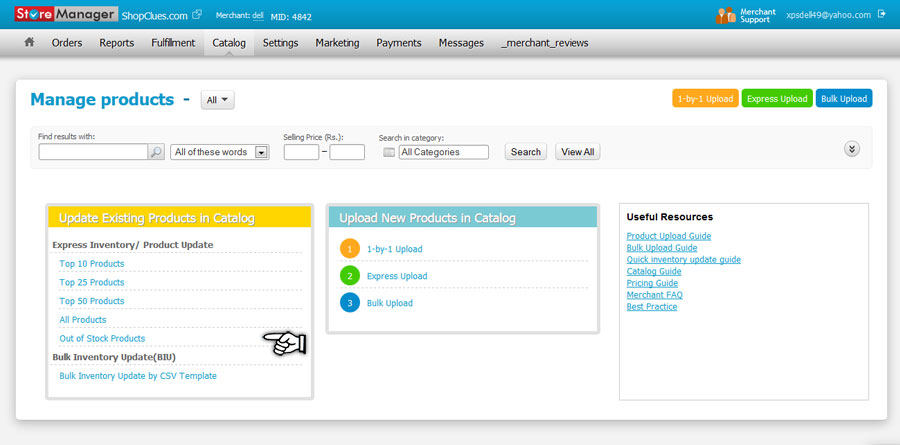
- Go to Manage Products under catalog tab in Store Manager, you will see Update Existing Products box.
- In that box you can click Top 10, Top 25 , Top 50 or more options and update inventory & price.
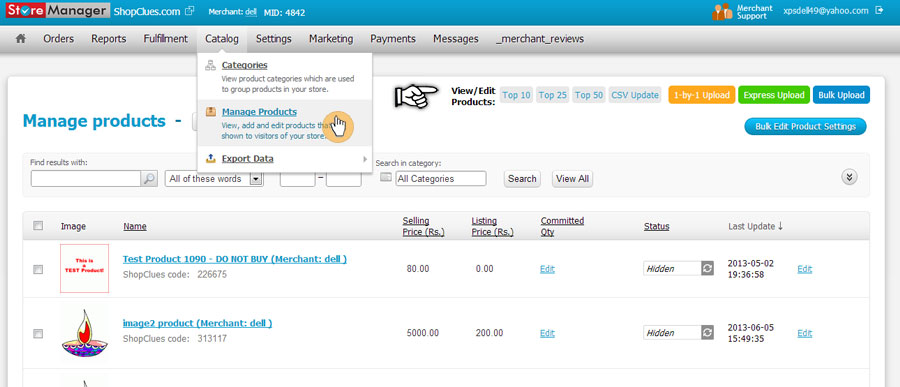
- Alternatively, you can also access these links from the top of Manage Product screen
• Bulk Inventory Update: Recommended for inventory update of 50 or more products:
- 1. Go to “Manage Products” section under Catalog, click on “Bulk Inventory Update by CSV Template”
- 2. Or use this direct link for accessing this feature: BIU by CSV
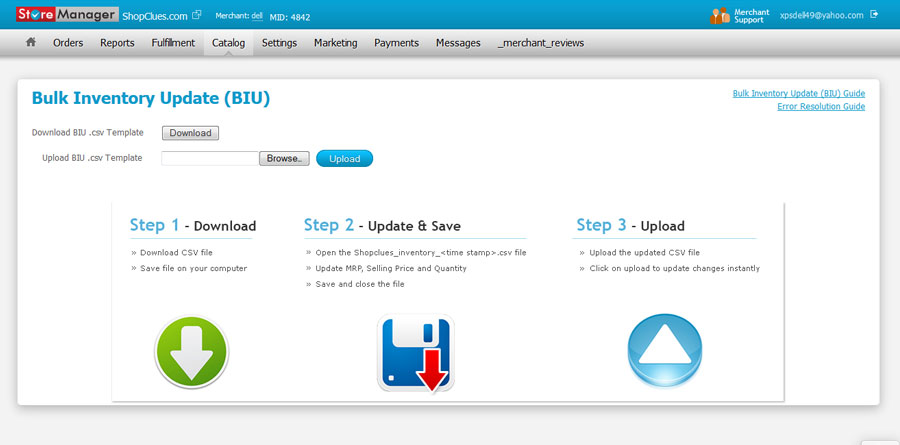
- 3. You will be guided to a new page, download BIU .csv template file
- 4. A file would be downloaded on your system with .csv extension
- 5. Open the downloaded file, make changes in MRP, Selling Price, Quantity, Shipping Charges, CoD Option and Status fields.
- 6. Then go back to the opened web page, hit the “Browse/Choose File” button, choose edited file from the saved location and hit “Open”.
- 7. Now hit “Upload” button to upload the chosen file
- 8. Your changes are updated live instantly
Please follow the points mentioned below for error free and quick updation:
- • Don’t change the extension (.csv) of the file name
- • Do NOT alter the CSV sheet template or change the layout
- • You should ONLY change values under MRP, Selling Price, Quantity, Shipping Charges, CoD Option and Status fields
- • For MRP, Selling Price and Quantitiy fields
- o Enter numeric values only
- o Don’t leave cells blank
- o Selling price must NOT be zero
- o Selling price must be lesser or equal to MRP
- • For Shipping Charges field
- o For free shipping enter “Free” or “0”
- o If you want to charge some shipping fee from customer then enter the numerical value
- o P.S.: Free shipping and CoD on products attracts more customers and hence results in more business.
- • For CoD Option field
- o If you want CoD on your product then enter “Yes” otherwise “No”
- • For Status field
- o Enter “D” if you want to disable a product.
- o Enter “A” if you want to activate a product.
- o P.S.: It is mandatory to fill all the required fields on product page before activating a product otherwise it will result in error.
- • Products with ZERO in quantity fields will be displayed as Out of Stock to the buyers
- • In case of variants (e.g. Size, Color) the MRP and Selling price must be same for all the variants. Please note if the MRP and Selling price are not same in the case of variant then system will pick the values of MRP and selling price of the first variant.
- • This feature will only work for changing price and quantity of existing and active products. For disabled products you would need to go to the Manage Products-> All Products page.
Also, here is the link for “Error Resolution Guide” in case you face any issues during uploading:
Error Resolution Guide