Phase 1: Invoice as a Service
Objective
Ability to associate Invoice No. with order and print sales tax Performa
Scope
- Merchant would be able to associate Invoice No. with each order
- Initial set up would be according to the orders that are eligible for manifest
- Print sales Tax Performa will be done with order no. and associated invoice number
- Bulk invoice functionality is incorporated where merchants can enter a series and click on auto fill and invoice numbers will be saved in order for all the selected orders
- Merchant can print the sales tax Performa once the invoice numbers are associated with orders
- Merchant can cancel invoice number associated with an order
- Duplicate invoice numbers are not allowed
- In case of bulk invoice, merchant has to provide total number of invoice numbers which is greater than or equal to the number of orders selected
Functionality
- Screen shots with description:
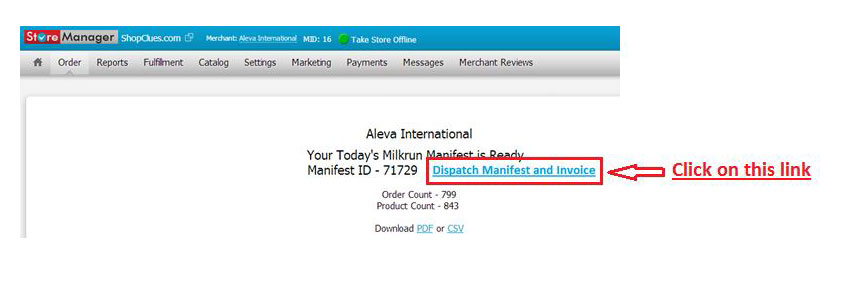
1. From this screen the Invoice Panel can be opened
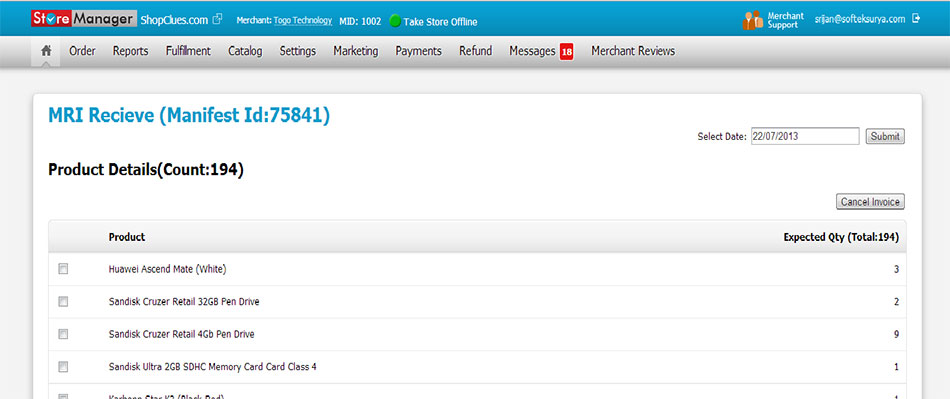
2. Merchant will land on this page
Details about the panel
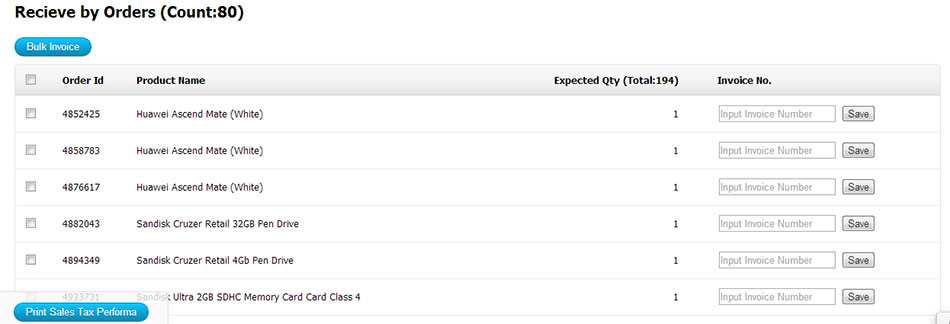
- Here Merchant can fill Invoice Number for each order one by one or select Bulk Invoice and provide a series and Auto Fill Invoice numbers for a set of selected orders or can fill invoice numbers in bulk for selected products
- Merchant need to make sure that (Start Series End Series -1) is greater than or equal to the number of orders selected
- Invoice numbers can be saved for the orders listed for the current date or Merchant can select any date in the past in the Select Date text box on the top right corner and once submitted orders for that date will be reflected on the panel and Merchant can associate invoice number for those orders
- Invoice Format Prefix/Number/Suffix
- Number cannot be negative
- On this top right corner Cancel Invoice Button is provided which takes the merchant to the Cancel Invoice screen
- Print Sales Tax Performa button on the bottom left helps the merchant to download the PDF which shows the associated of order with invoice number
- Merchant can take the print out of the PDF and hand it over to the pick-up boy
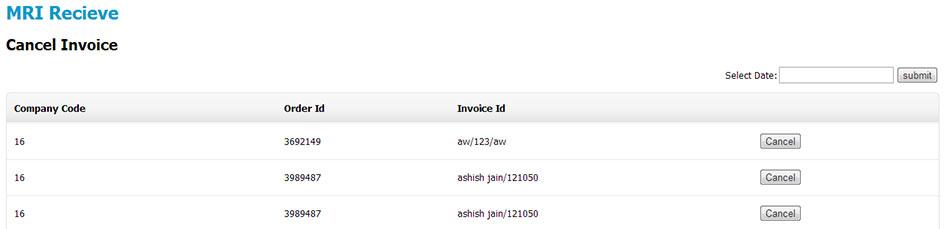
3. Cancel Invoice screen
- Merchant can cancel invoice number associated with an order number
- Once cancelled pop up will come which confirm the cancellation
- Cancelled invoice number can be reused